Le Controlleur
User GuideOverview

Le Controlleur is a dual-mode performance program for the Shmøergh Moduleur Brain module. We suggest to use this as your default firmware because it combines a clockable sequencer and a MIDI to CV interface so you can have a ton of fun with it.
By default the program is in Sequencer mode. To switch between the modes, hold A + B buttons for about 1.5s. Switching modes is indicated by a quick animation on the LED strip.
The Sequencer generates random notes and rhythms depending on where you turn Pot Z: turned fully clockwise will result in all notes being random, while turned all the way down will lock in the actual sequence. In between values will morph and change a few notes, organically creating new sequences.
The MIDI to CV converter enables you to use external MIDI gear with the Moduleur. Connect your keyboard or sequencer to the MIDI in of the Brain module with a TRS-A MIDI cable and you can use the outputs of the Brain to control gate, pitch and more on the Moduleur.
Saved settings
Le Controlleur saves the last app mode (Sequencer or MIDI to CV) and the MIDI settings (channel, CV out setup and mode) so you don't have to re-apply it every time you turn on your synth.
Sequencer
The Sequencer in Le Controlleur is a dual-pitch probabilistic sequencer with focus on musicality instead of just generating random blips and blops. Use it to generate shuffling basslines, evolving multi-octave motifs, or hands-on modulation using the three pots plus shift layer.
Getting started
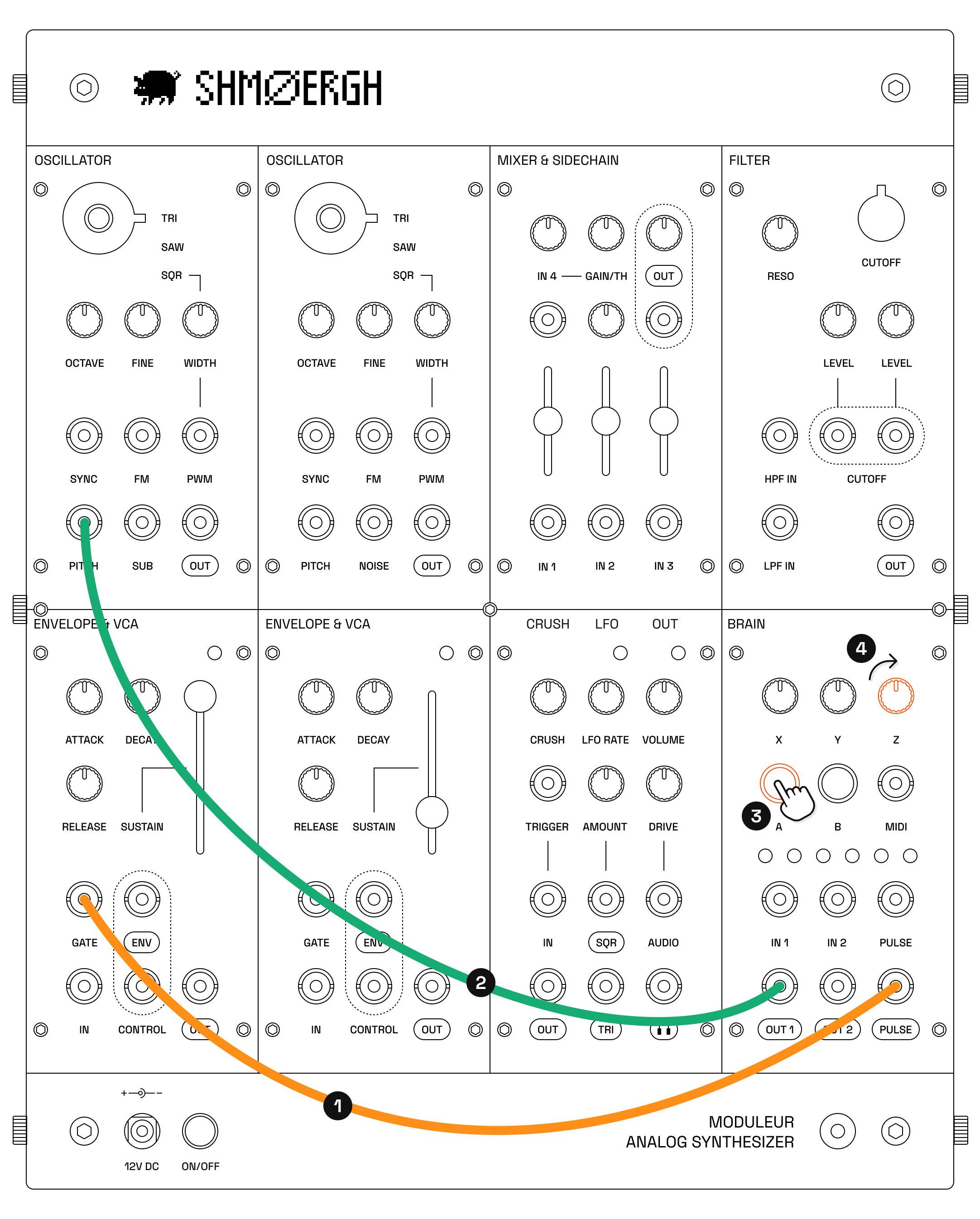
- Patch:
Brain / Pluse Out•••Envelope 1 / Gate - Patch:
Brain / Out 1•••VCO 1 / Pitch - Press
Brain / Button A - Rotate
Brain / Pot Z
So what's going on?
The Sequencer in Le Controlleur is a 16th-note step sequencer with that generates notes and gates. The main workflow is simply to press Button A to play/pause and use Pot Z to set how random you want the output notes. Pot Z all the way down locks the last notes and as you turn the pot up it adds more and more randomness. With Pot Z at max all notes and gates will be random.
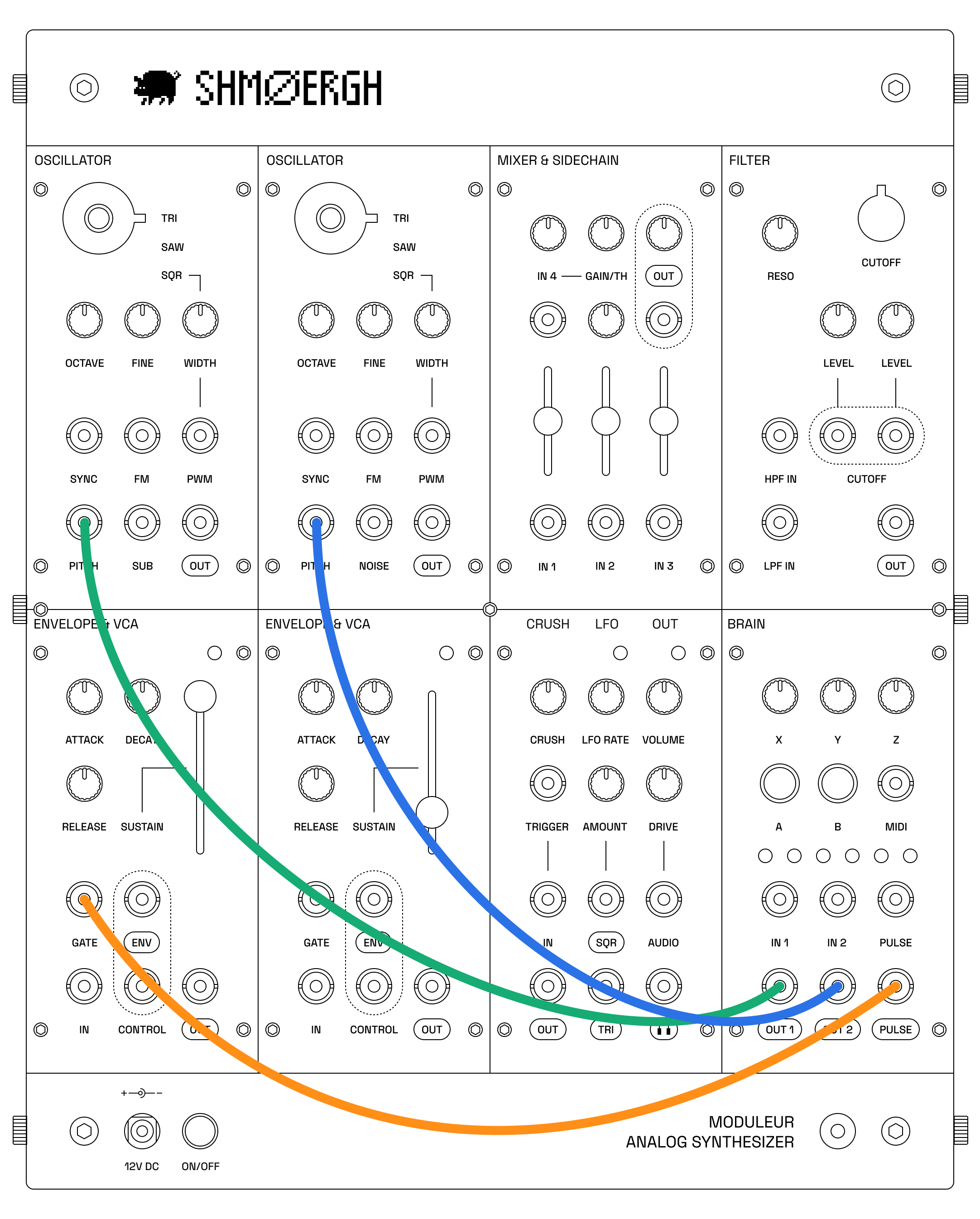
The Brain has only one Pulse Out so the note gates are shared but Out 1 and Out 2 generate two sets of control voltages. For duophonic use add an extra patch cable to Brain / Out 2 ••• VCO 2 / Pitch.
LED feedback
The LED on Button A shows the current tempo while the six LEDs show the gate output with the rightmost being the last generated one and the rest marching from right to left. When you change a control value with the buttons and pots, the LEDs show the current temporarily.
Controlling the sequencer
Basics
| Function | What it does |
|---|---|
| Button A | Play / pause |
| Button B | Shift |
| Hold Button A + Button B for 1.5s | Change between modes |
| Pot X | Tempo (default 120) |
| Pot Y | Octave range of generated notes |
| Pot Z | Randomness |
The sequencer generates 16th notes and fixed 20ms pulses. If a step gate is low, outputs hold previous voltages (no new trigger).
You can set the sequence length with a Shift function (see next).
Shift functions
| Function | What it does |
|---|---|
| Button B + Pot 1 | Swing |
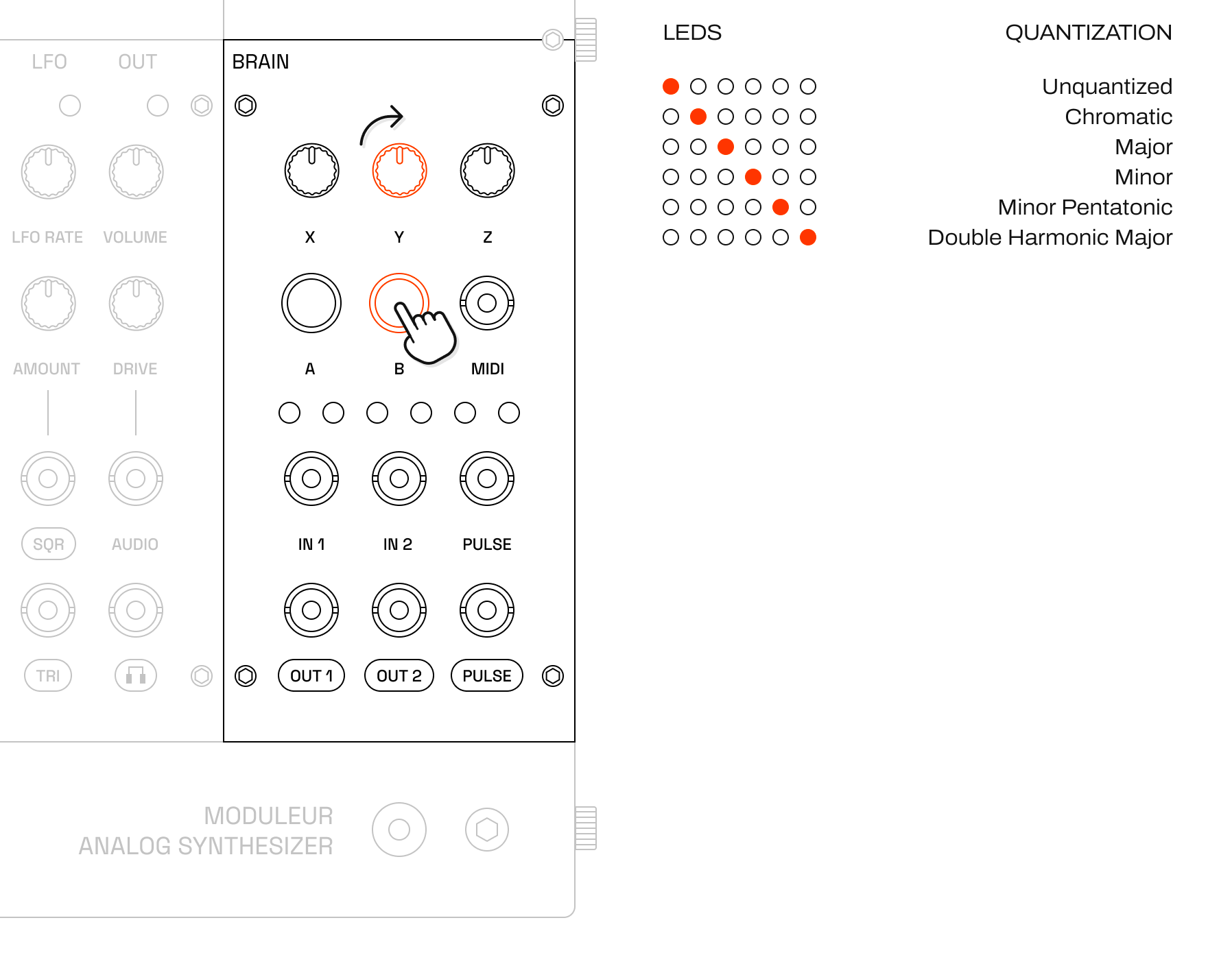
| Button B + Pot 2 | Quantization mode |
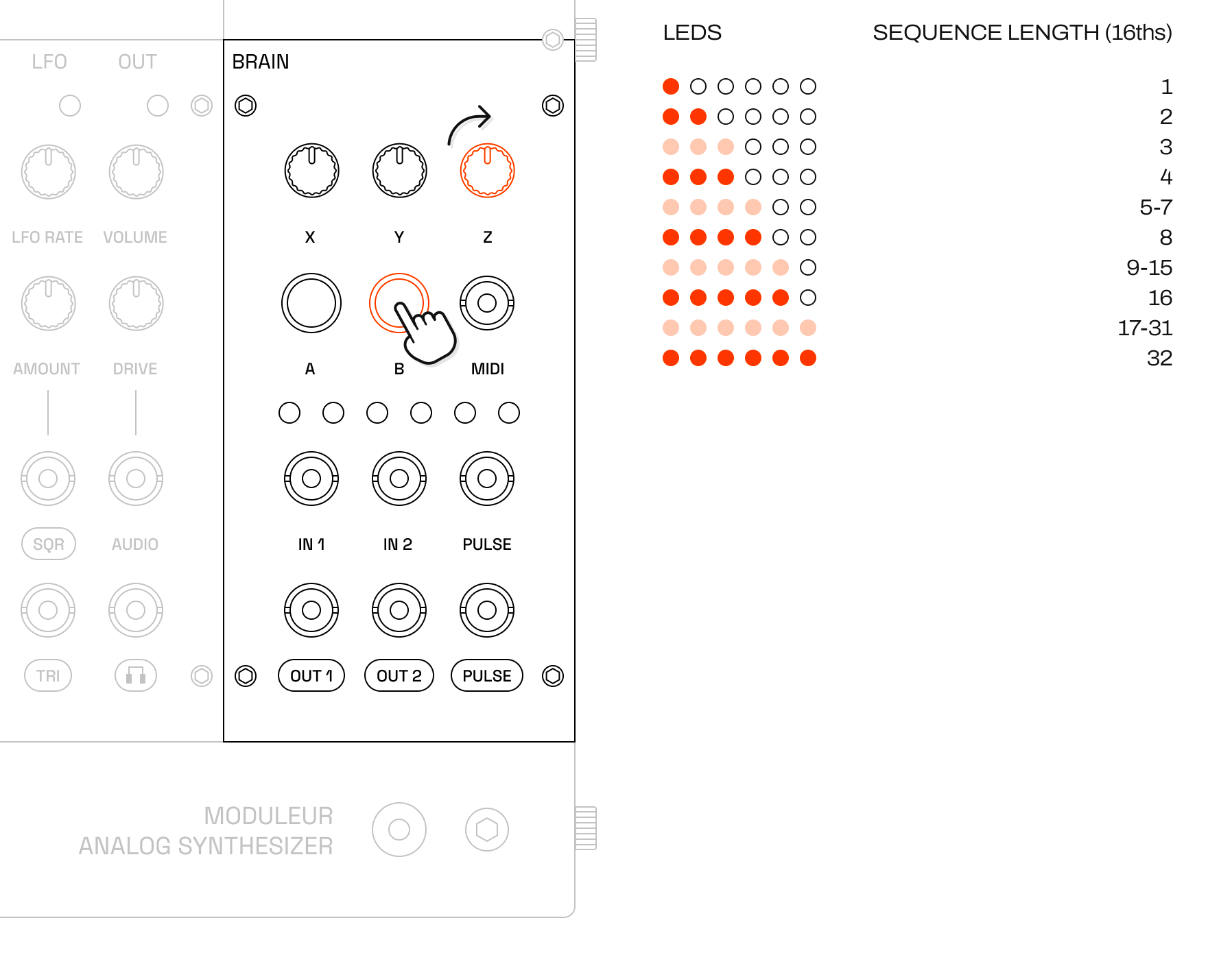
| Button B + Pot 3 | Sequence length |
Quantization: use this to quantize the CV to musical scales. Options as show by the LED strip: unquantized, chromatic, major, minor, minor pentatonic, double harmonic major.
Sequence length: set the length of the sequence between 2..32 notes. The LED strip shows you the approximate length of the sequence. We snap the values to 2, 4, 8, 16 and 32 and show visual feedback with fully bright LEDs.
Transpose & base note
You can transpose the sequence by octaves and set its base note by double press and holding Button B and using Pot Y and Pot Z. Additionally you can also set the base note via a MIDI controller.
| Function | What it does |
|---|---|
| Double press and hold Button B + Pot Y | Transpose octave |
| Double press and hold Button B + Pot Y | Base note |
| Press a note on MIDI controller | Base note |
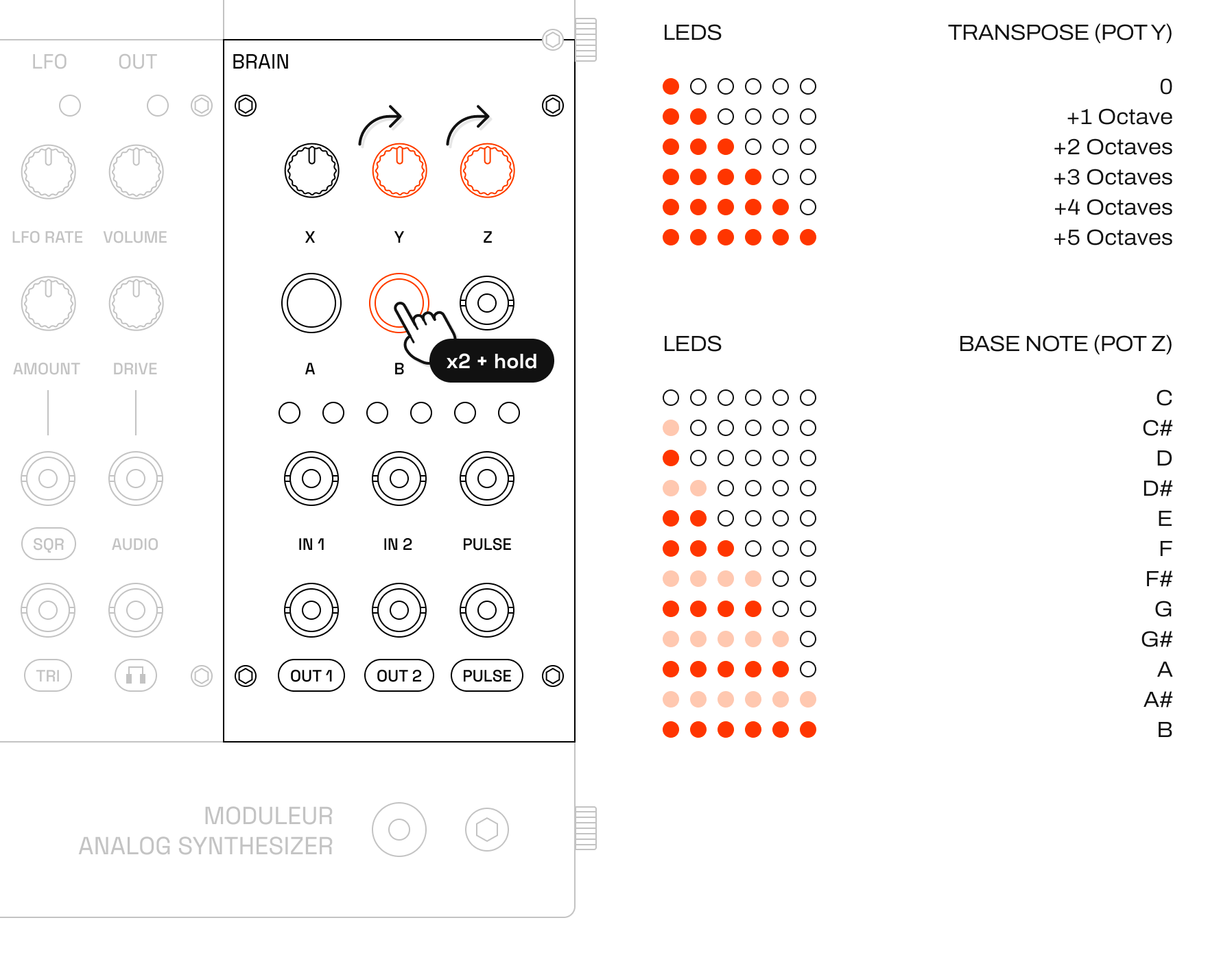
Note that the Sequencer is only listening to base note change on the selected MIDI channel. To change the MIDI channel, go to MIDI to CV mode (by holding both buttons for about 1.5s) and use Button A + Pot X.
External Sync
To sync the tempo of the Sequencer to your other synths, samplers, drum machines and other gears, turn Pot X fully to the minimum. This will stop the sequencer's internal clock and wait for external clock input.
You can use either Pulse In or MIDI In to feed a clock to the Sequencer with priority on Pulse In. The Sequencer is listening to MIDI clock input on all channels.
Swing is applied in both internal and external tempo.
MIDI clock behavior:
0xF8clock:24 PPQN, sequencer advances every6clocks (16th notes)0xFAStart: reset to step 0 and run0xFBContinue: resume0xFCStop: stop and gate low
MIDI to CV Converter
The MIDI to CV mode turns Le Controlleur into a compact MIDI interface for modular systems. It is best when you want to play from an external keyboard or controller and get immediate pitch and gate plus a second expressive CV output.
Use this mode for performance-oriented patches where fast channel and mode switching matters, and where the Brain should behave like a reliable MIDI front-end rather than a pattern generator.
Features
MIDI to CV/Gate conversion: Converts MIDI note-on/note-off messages to 1V/octave pitch CV and gate signals
Configurable MIDI channel: Use any MIDI channel (1-16)
Dual CV outputs: Route pitch and gate to either output channel of the Brain module
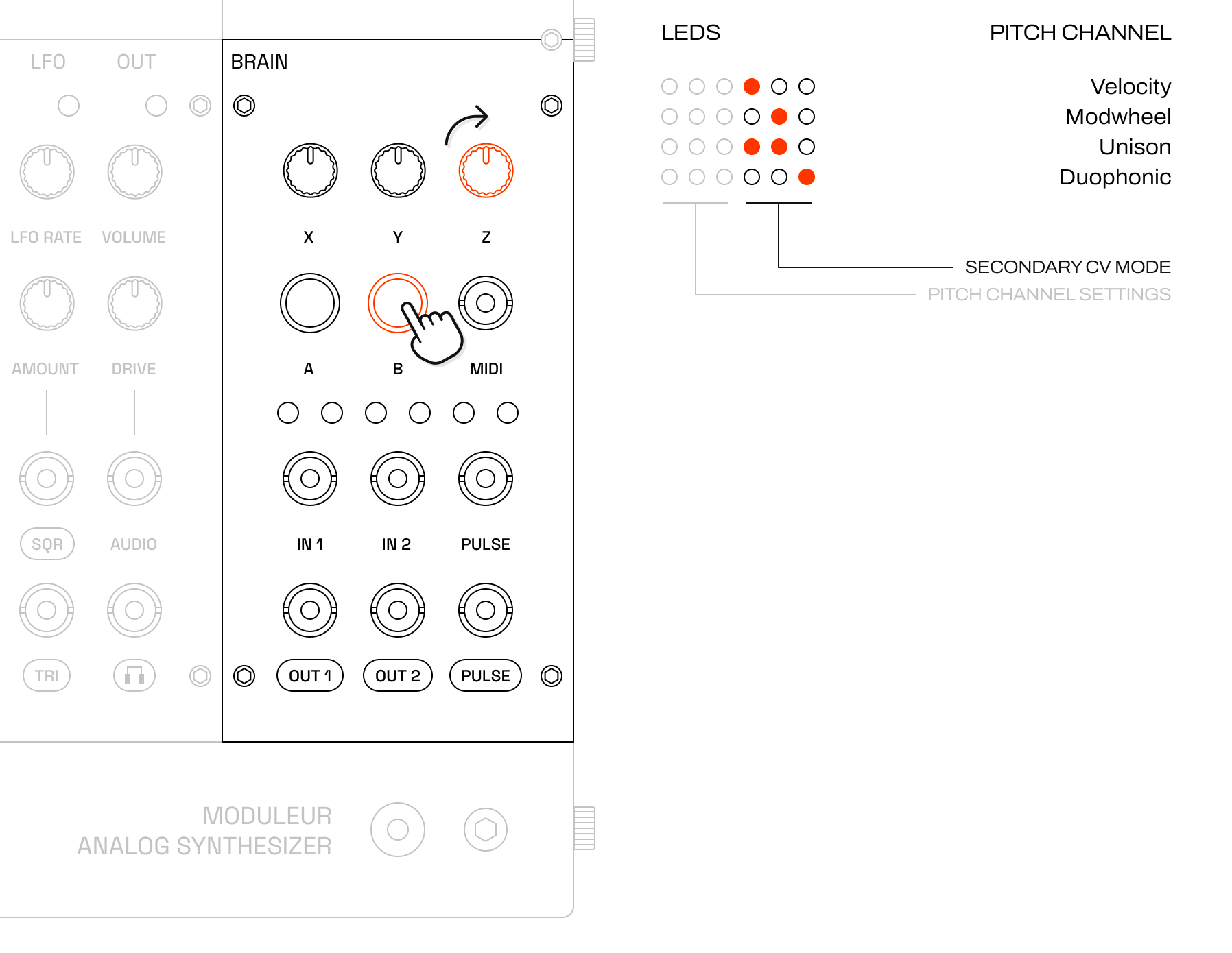
CC to CV mapping: Secondary CV output can provide velocity, modwheel, unison pitch, or duophonic split
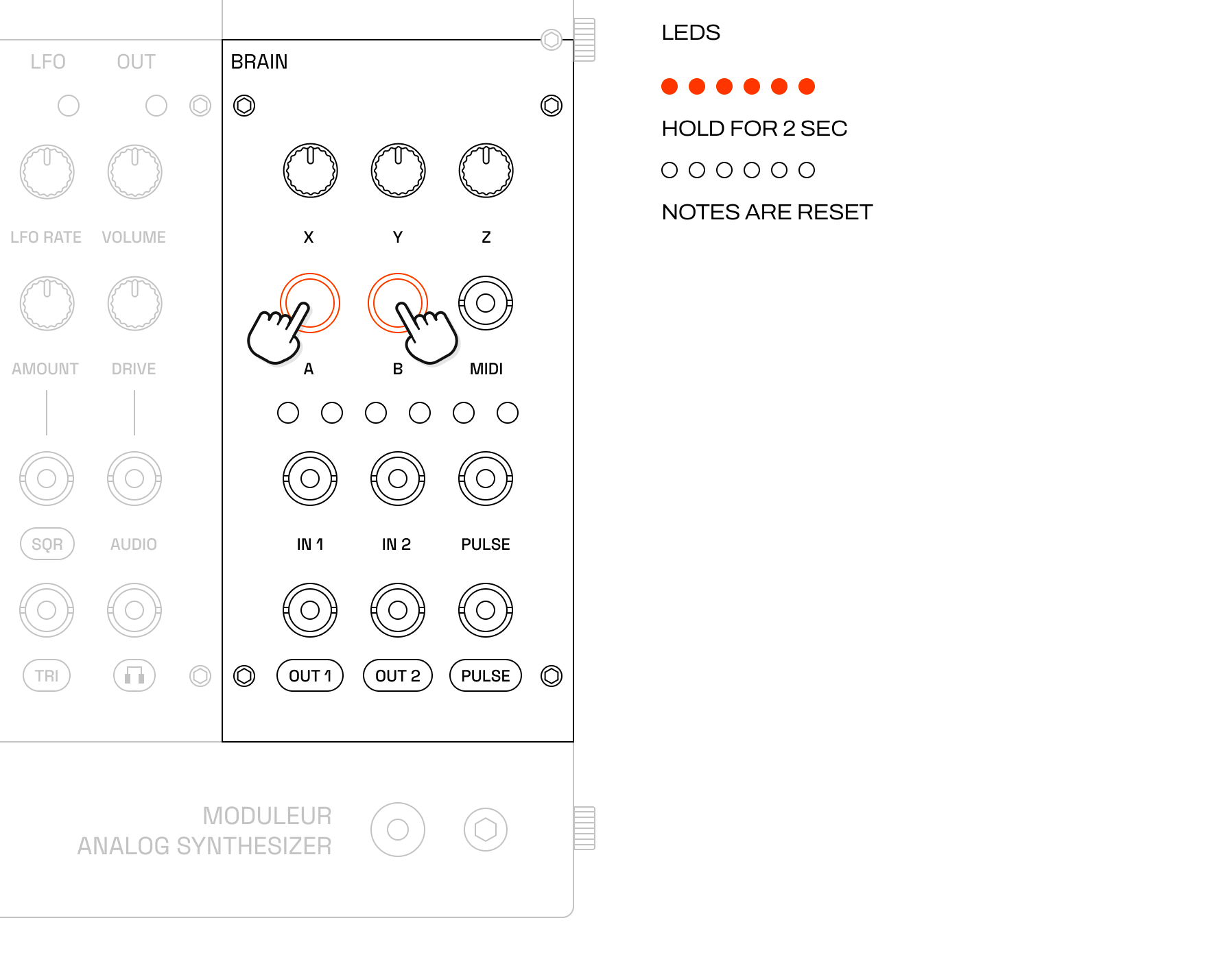
Panic function: Clear stuck notes by holding both buttons for 2 seconds
Visual feedback: 6-LED display shows current MIDI channel or selected CV output during configuration
Configuring MIDI Channel
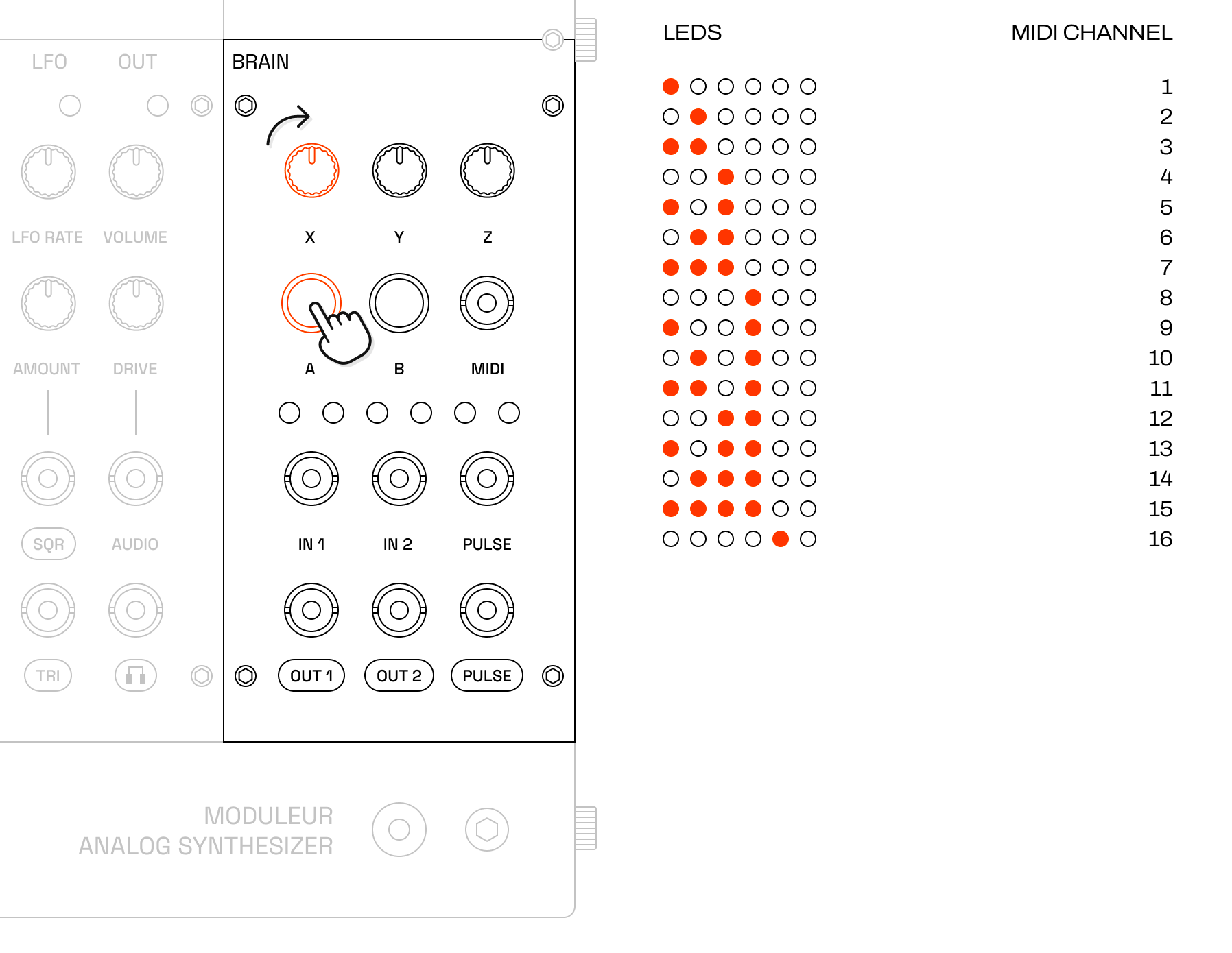
- Press and hold Button A (left button)
- Turn Pot X (left potentiometer) to select MIDI channel 1-16
- LEDs will display the selected channel number in binary (1-16)
- Release Button A to save the setting
Configuring Pitch CV Output Channel
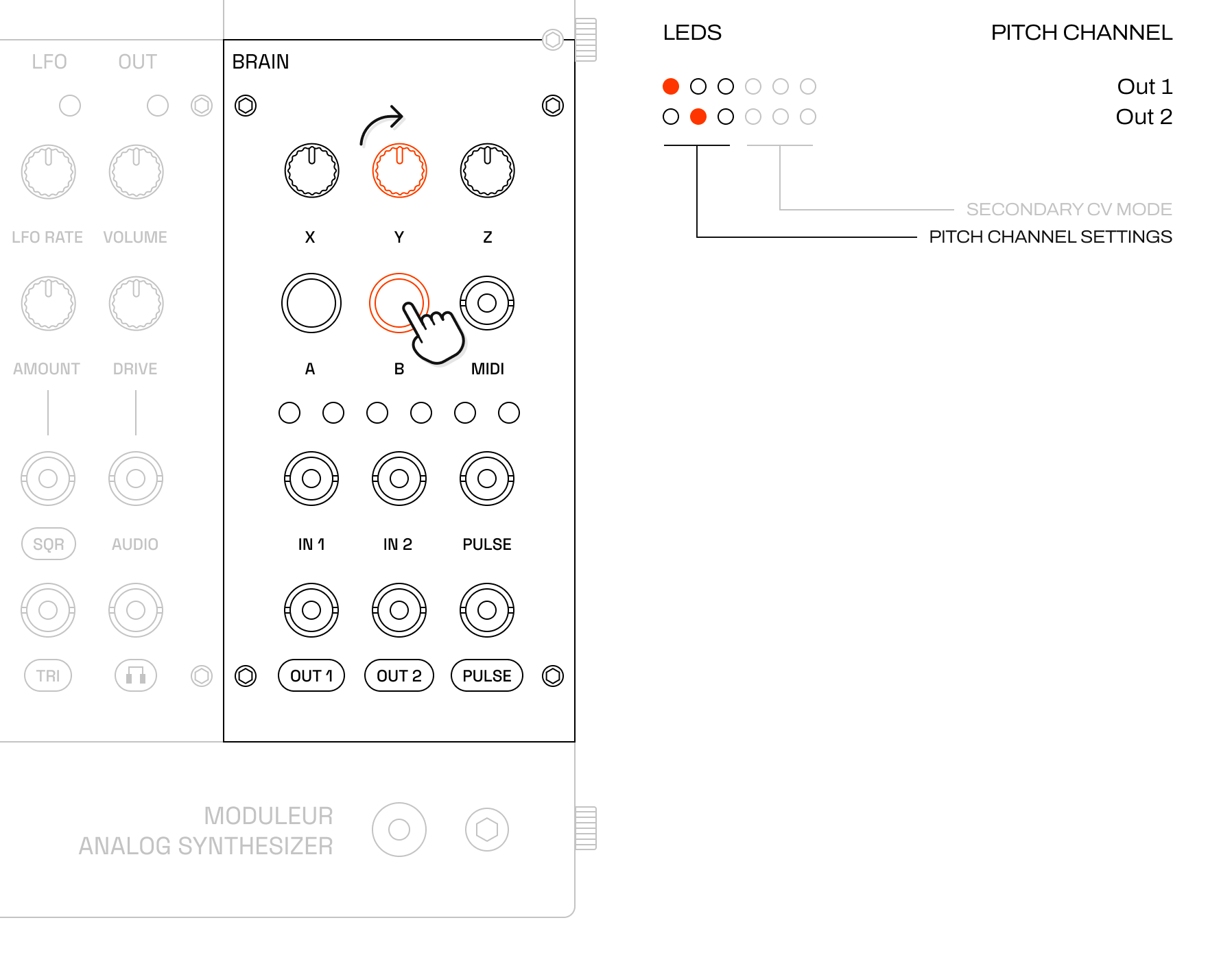
- Press and hold Button B (right button)
- Turn Pot Y (middle pot) to select the output channel:
- Turn fully counter-clockwise: Pitch is sent on
Out 1 - Turn fully clockwise: Pitch is sent on
Out 2
- Turn fully counter-clockwise: Pitch is sent on
- Release Button B to save the setting
Configuring CC to CV Mode
- Press and hold Button B
- Turn Pot Z (rightmost pot) to select the CC-to-CV mode:
- Velocity: Outputs 0-5V based on note velocity
- Modwheel: Outputs 0-5V based on MIDI CC1 (modulation wheel)
- Unison: Outputs the same pitch CV as the primary channel
- Duophonic: Splits the two most recent notes across the two CV channels
- Release Button Z to save the setting
Panic
If MIDI notes get stuck (e.g., if the MIDI cable is disconnected during a note on) just press and hold both Button A and Button B simultaneously. The note stack will be cleared and the gate will turn off.